How to make 3D files for printing
Creating 3D files for printing can seem daunting at first, but with the right tools and a little practice, anyone can learn to design and print their own 3D models. Whether you're a hobbyist looking to print custom gadgets or a professional designer creating prototypes, this guide will walk you through the process of making 3D files for printing. By understanding the foundational aspects of 3D design and becoming familiar with the workflow from concept to print, you can unlock endless possibilities in the world of 3D printing.
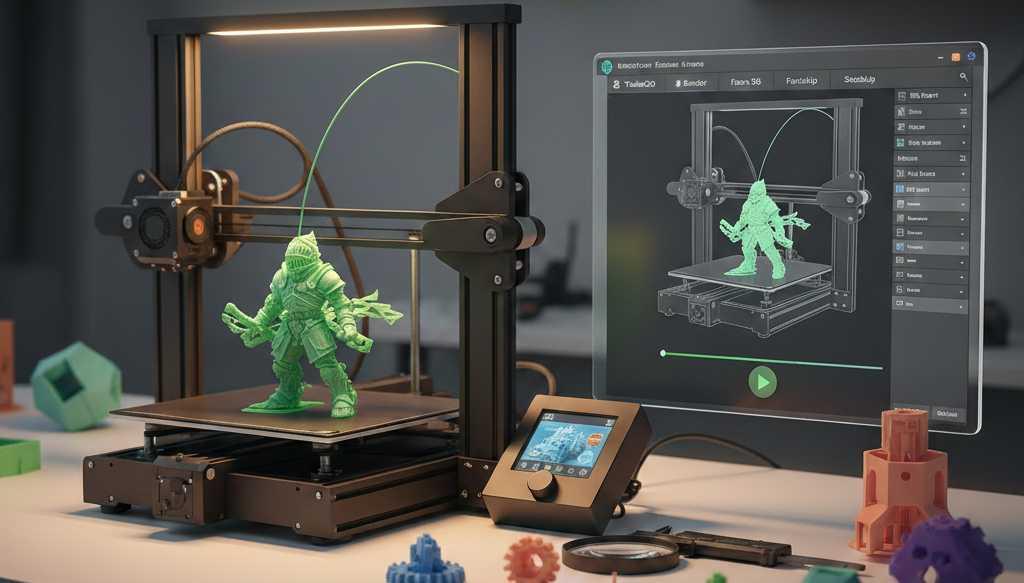
Choosing the right software
The first step in creating 3D files is choosing the right software. Selecting the appropriate tool can significantly influence your design experience and the quality of your final product. There are numerous options available, ranging from beginner-friendly to professional-grade, each catering to different needs and skill levels. Here are some popular choices:
TinkerCAD
TinkerCAD is a great starting point for beginners. It's a free, web-based application that offers a simple interface and basic tools. You can create models by combining simple shapes, and it's perfect for learning the basics of 3D design.
- Ease of Use: TinkerCAD's intuitive drag-and-drop interface makes it accessible even for those with no prior experience in 3D design. The simplicity of its tools allows users to quickly grasp fundamental concepts and start creating.
- Educational Resources: The platform offers a wealth of tutorials and guided lessons, making it an excellent educational tool for students and educators alike. These resources help users build confidence and skill progressively.
- Collaborative Features: As a cloud-based tool, TinkerCAD facilitates easy sharing and collaboration. Users can work on projects from any device with internet access, making it convenient for group projects and feedback sessions.
Blender
Blender is a powerful, open-source tool that's popular among hobbyists and professionals. It offers a wide range of features, including modeling, sculpting, and animation tools. While it has a steeper learning curve, it's incredibly versatile and completely free.
- Advanced Features: Blender's extensive toolkit includes advanced features like physics simulation, rigging, and rendering, which are ideal for users looking to explore beyond basic modeling. These capabilities make it suitable for creating highly detailed and animated models.
- Community and Support: Blender boasts a vibrant user community, offering forums, tutorials, and resources for troubleshooting and skill development. This community support is invaluable for new users navigating the complexities of the software.
- Cross-Platform Compatibility: Being open-source, Blender is available on multiple operating systems, including Windows, MacOS, and Linux. This flexibility ensures that users can access their projects regardless of their platform of choice.
Fusion 360
Fusion 360 is a cloud-based CAD software developed by Autodesk. It's ideal for creating detailed and precise models, making it a favorite among engineers and product designers. While it requires a subscription, students and educators can access it for free.
- Professional-Grade Features: Fusion 360 offers a comprehensive suite of tools for parametric design, simulation, and manufacturing, catering to professional needs. Its precision and detail make it a top choice for engineers and product developers.
- Cloud-Based Collaboration: The software's cloud-based nature allows for seamless collaboration and project sharing. Multiple team members can work on the same project simultaneously, facilitating efficient workflow and communication.
- Educational Access: Autodesk provides free access to Fusion 360 for students and educators, supporting learning and innovation in academic settings. This access ensures that the next generation of designers is well-versed in industry-standard tools.
SketchUp
SketchUp is another user-friendly option, offering both free and paid versions. It's known for its intuitive interface and is widely used in architectural design. While it's not as powerful as some other tools, it's great for creating simple models.
- User-Friendly Interface: SketchUp's interface is designed to be intuitive, allowing users to quickly sketch out ideas and visualize them in 3D. Its simplicity is its strength, making it a favorite among architects and interior designers.
- Versatile Application: While it's renowned for architectural design, SketchUp's versatility extends to various fields, including landscape architecture and game design. Its flexibility makes it a valuable tool for creative professionals.
- 3D Warehouse: SketchUp's 3D Warehouse is a vast repository of pre-made models that users can access and incorporate into their designs. This feature saves time and enhances creativity by providing a foundation for new projects.
Designing your 3D model
Once you've chosen your software, it's time to start designing. Crafting a 3D model requires a blend of creativity, technical understanding, and a consideration of practical constraints. Here are some key considerations when creating your 3D models:
Understanding the basics
Before diving into your design, it's important to understand the basic concepts of 3D modeling. This includes learning about coordinates, dimensions, and how to manipulate objects in a 3D space. Most software comes with tutorials and guides to help you get started.
- Grasping 3D Coordinates: Understanding the XYZ coordinate system is crucial in 3D design. It allows you to accurately position and manipulate objects in a virtual space, forming the foundation of all 3D modeling work.
- Dimensions and Scaling: Accurate scaling and dimensioning are vital for ensuring that your final printed object meets your size requirements. Learning to adjust dimensions within your software is essential for precision.
- Manipulation Tools: Familiarize yourself with the manipulation tools your software offers, such as rotation, scaling, and translation. Mastery of these tools enables you to refine your designs with precision and ease.
Starting with simple shapes
If you're new to 3D design, start by creating models using simple shapes like cubes, spheres, and cylinders. You can combine and modify these shapes to create more complex designs. As you become more comfortable, you can experiment with more advanced techniques like sculpting and texturing.
- Combining Basic Shapes: Begin by experimenting with basic shapes and exploring how they can be combined to form more intricate designs. This foundational skill is crucial for developing complex models over time.
- Progressive Complexity: As you gain confidence, gradually introduce more complexity into your designs. Try incorporating techniques like Boolean operations to merge or subtract shapes, enhancing your creative possibilities.
- Experimenting with Textures: Texture mapping adds depth and realism to your models. Learning how to apply and manipulate textures can significantly enhance the visual appeal of your designs.
Designing for 3D printing
When designing for 3D printing, it's important to consider the capabilities and limitations of your 3D printer. For example, ensure that your model has adequate wall thickness and avoid overhangs that exceed the printer's capabilities. Most design software includes tools to help you check for potential issues.
- Wall Thickness and Support: Maintaining appropriate wall thickness is crucial for structural integrity and successful printing. Use your software's analysis tools to ensure your design is robust enough for printing.
- Avoiding Overhang Issues: Overhangs can pose challenges during printing, leading to failed prints or poor quality. Design with minimal overhangs or incorporate supports where necessary to mitigate these issues.
- Printer-Specific Constraints: Different printers have unique capabilities and limitations. Familiarize yourself with your printer's specifications, such as maximum build size and material compatibility, to optimize your designs accordingly.
Modular design
If your design is too large to be printed in one piece, consider breaking it down into smaller components that can be assembled after printing. This is especially important for models with intricate details or moving parts.
- Modular Design: Designing models in modular components can facilitate easier printing and assembly. Consider how parts will fit together and plan for any necessary connectors or fasteners.
- Interlocking and Snap-Fit Parts: Explore interlocking or snap-fit designs to simplify assembly and enhance stability. These techniques can improve the functionality and aesthetics of your final product.
- Testing Assembly: Before printing the final version, test the assembly of your model digitally or with smaller prototypes. This step can help identify potential issues and optimize the design for assembly.
Exporting as STL
STL (Stereolithography) files are the standard file format for 3D printing. Properly preparing and exporting your design as an STL file ensures compatibility with most 3D printers. Here's how to create and export your design as an STL file:
Pre-export checks
Before exporting, double-check your design for any errors or issues that might affect the print quality. Use your software's analysis tools to identify and fix problems like non-manifold edges or intersecting faces.
- Error Checking: Thoroughly review your model for common errors such as non-manifold edges, which can disrupt printing. Utilize your software's diagnostic tools to ensure your design is print-ready.
- Structural Integrity: Analyze the structural integrity of your model to prevent weak points or potential failures during printing. Address any areas that may compromise the final product's durability.
- Aesthetic Considerations: Pay attention to the aesthetic aspects of your design, such as surface smoothness and detail accuracy. Refine these elements to enhance the overall quality of your printed object.
Export settings
Once your design is ready, export it as an STL file. Most 3D modeling software has an export option in the file menu. During export, you may have the option to adjust the resolution of your STL file, which affects the level of detail in the final print.
- Choosing Resolution: Decide on the appropriate resolution for your STL file based on the level of detail required. Higher resolution offers more detail but results in larger file sizes, which can affect processing time.
- Export Settings: Familiarize yourself with the export settings in your software. Adjust parameters such as units of measurement and file orientation to ensure compatibility with your printer and slicing software.
- File Naming and Organization: Adopt a consistent naming convention and organizational system for your STL files. This practice simplifies file management and retrieval, especially when working on multiple projects.
Slicing and preview
Before printing, it's a good idea to test your STL file using a slicing software like Cura or PrusaSlicer. These tools convert your STL file into G-code, the language your printer understands. They also allow you to preview the print and make adjustments if needed.
- Slicing Software Familiarity: Become acquainted with your chosen slicing software, exploring its features and customization options. Understanding the software's capabilities enhances your ability to optimize print settings.
- Print Preview and Analysis: Utilize the print preview feature to visualize how your model will be printed layer by layer. This step helps identify potential issues and allows for adjustments to improve the print outcome.
- Adjusting Print Settings: Experiment with different print settings, such as infill density and print speed, to achieve the desired balance between print quality and time efficiency. Fine-tuning these parameters can significantly impact the final result.
Preparing for print
Creating 3D printable models involves more than just designing; you also need to prepare them for printing. Proper preparation ensures that your models are optimized for successful printing and meet your intended design goals. Here's a quick guide:
Slicing
Slicing is the process of converting your 3D model into instructions that your printer can follow. Slicing software divides your model into thin layers and determines the best path for the printer's nozzle. During slicing, you can adjust settings like layer height, print speed, and infill density.
- Layer Height Considerations: Adjusting the layer height affects the print's resolution and surface finish. Smaller layer heights result in smoother prints but increase print time, while larger layers are faster but less detailed.
- Print Speed Optimization: Balancing print speed is crucial for achieving quality prints. Faster speeds reduce print time but may compromise quality, so find a setting that maintains detail while optimizing efficiency.
- Infill Density and Pattern: The infill density and pattern influence the model's strength and weight. Experiment with different settings to achieve the desired balance between structural integrity and material usage.
Printability checks
Before printing, use your slicing software to check for any potential printability issues, such as unsupported overhangs or thin walls. Many slicers include built-in tools to help identify and correct these problems.
- Overhang and Support Analysis: Review overhang angles and ensure adequate support structures are in place to prevent sagging or failed prints. Adjust support settings for optimal support placement and ease of removal.
- Wall Thickness Verification: Verify that your model's walls meet the minimum thickness recommended for your printer. Thin walls may cause structural issues or lead to incomplete prints.
- Bridging and Gap Analysis: Analyze bridging capabilities and adjust settings to ensure successful printing of gaps or bridges in your design. Fine-tuning these parameters enhances the print's structural integrity.
Optimization tips
To ensure the best print quality, consider optimizing your design. This can include adding supports for overhangs, adjusting the model orientation for better stability, or increasing the infill for added strength.
- Model Orientation: Experiment with different orientations to improve print stability and reduce the need for supports. Proper orientation can minimize warping and enhance surface quality.
- Support Strategy: Develop a support strategy that balances print stability with ease of support removal. Consider using soluble supports if your printer supports multi-material printing for easier post-processing.
- Infill Optimization: Adjust infill patterns and densities to achieve the desired balance between strength and material usage. Higher infill densities increase strength, while lower densities reduce material consumption.
Test prints
It's often a good idea to run a small test print before committing to a full-scale version. This allows you to check the print quality and make any necessary adjustments to your design or printer settings.
- Test Print Selection: Choose a representative section of your model for the test print, focusing on areas with critical details or complex features. This targeted approach saves time and material while providing valuable insights.
- Evaluating Print Quality: Assess the test print for surface finish, dimensional accuracy, and structural integrity. Use this information to make informed adjustments to your design or print settings.
- Iterative Improvements: Use the feedback from your test print to iteratively improve your model or print parameters. This process ensures that the final print meets your expectations and requirements.
Tips for success
To make the most of your 3D printing endeavors, consider these additional tips for achieving success:
- Start Simple: Begin with simple designs and gradually work your way up to more complex models. This approach helps build foundational skills and confidence as you progress.
- Learn from Others: Join online communities and forums to learn from experienced designers and get feedback on your designs. Engaging with others fosters learning and inspires creativity.
- Experiment with Settings: Don't be afraid to experiment with your printer's settings to achieve the best results. Tinkering with different parameters can unlock new possibilities and enhance print quality.
- Keep Learning: 3D printing technology is constantly evolving, so stay updated with the latest trends and techniques. Continuous learning ensures you remain at the forefront of innovation and creativity.
By understanding the basics of 3D design, choosing the right software, and carefully preparing your models for printing, you'll be well on your way to creating amazing 3D printed objects. Embrace the journey and enjoy the endless possibilities that 3D printing offers. Happy printing!